The AL60 features three physical buttons on the rear of the clock, allowing you to manually set the time and change display modes without needing to access the web interface.
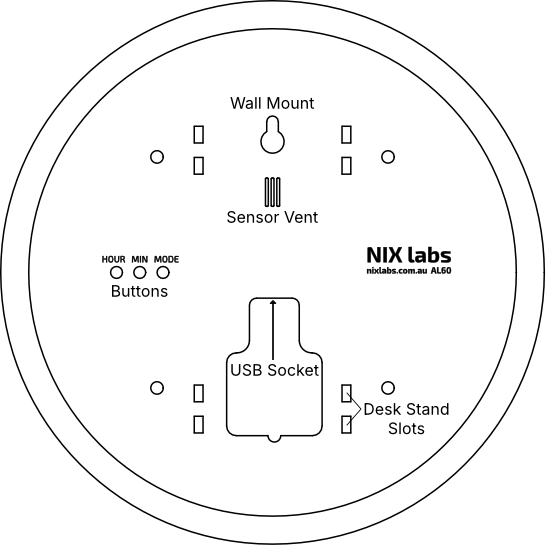
Button Layout
Section titled “Button Layout”- Mode Button (MODE): Used for switching between different clock and sensor display modes, as well as light control mode.
- Minute Button (MIN): Used for manual time adjustment and system actions.
- Hour Button (HOUR): Used for manual time adjustment and system actions.
Mode Button Actions
Section titled “Mode Button Actions”The mode button has multiple functions:
- Single Press: Cycles through the primary clock display modes
- Double Press: Cycles through the sensor display modes on the notification arcs
- Long Press: Cycles through the light control modes:
- Motion Detection: Uses the built-in radar to adjust the display brightness when presence is detected.
- Ambient Brightness: Adjusts display brightness automatically based on room lighting.
- Motion Ambient Brightness: Combines the above two modes. When presence is detected the display brightness will be adjusted based on ambient light and dimmed when no presence is detected.
- Manual/Off: Keeps the clock at a constant brightness and turns off automatic scaling.
Manual Time Adjustment
Section titled “Manual Time Adjustment”If you are not using internet time sync (SNTP), you can set the time manually using the Hour (HOUR) and Minute (MIN) buttons:
- Single Press: Increments the time by one hour or one minute.
- Long Press: Holding either button will result in a continuous fast-increment of the hours or minutes.
System Actions
Section titled “System Actions”By pressing and holding both the Hour (HOUR) and Minute (MIN) buttons simultaneously, you can perform the following system actions:
- Restart: Hold for 2-10 Seconds to re-enable internet time sync (SNTP) and reboot the clock. This does not clear your settings.
- Factory Reset: Hold for 10+ Seconds to perform a full reset, clearing all saved Wi-Fi credentials and settings. The clock will reboot into its default state.